

Find instructions on how to use the app.
Tapping the screen you want to see will take you to an explanation of the function.
Watching over
View feature details ➔
Settings and Others
Go to various settings ➔🔰 How to get started with the app
Create a new account
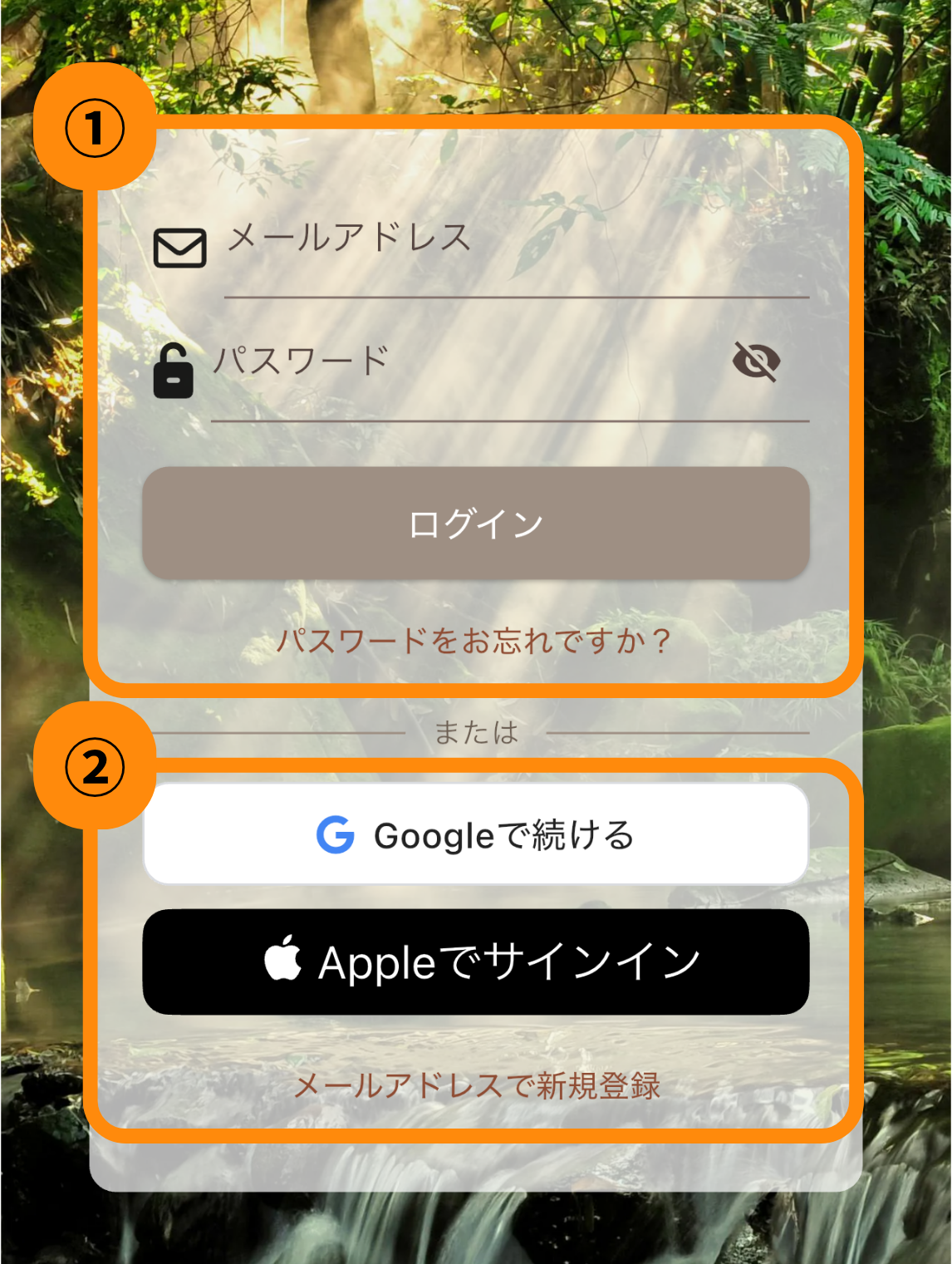
②From Google and Apple
Can be created immediately
*For those who already have an account
Enter ① to log in
If you are logged in with Google or Apple
Log in from ②
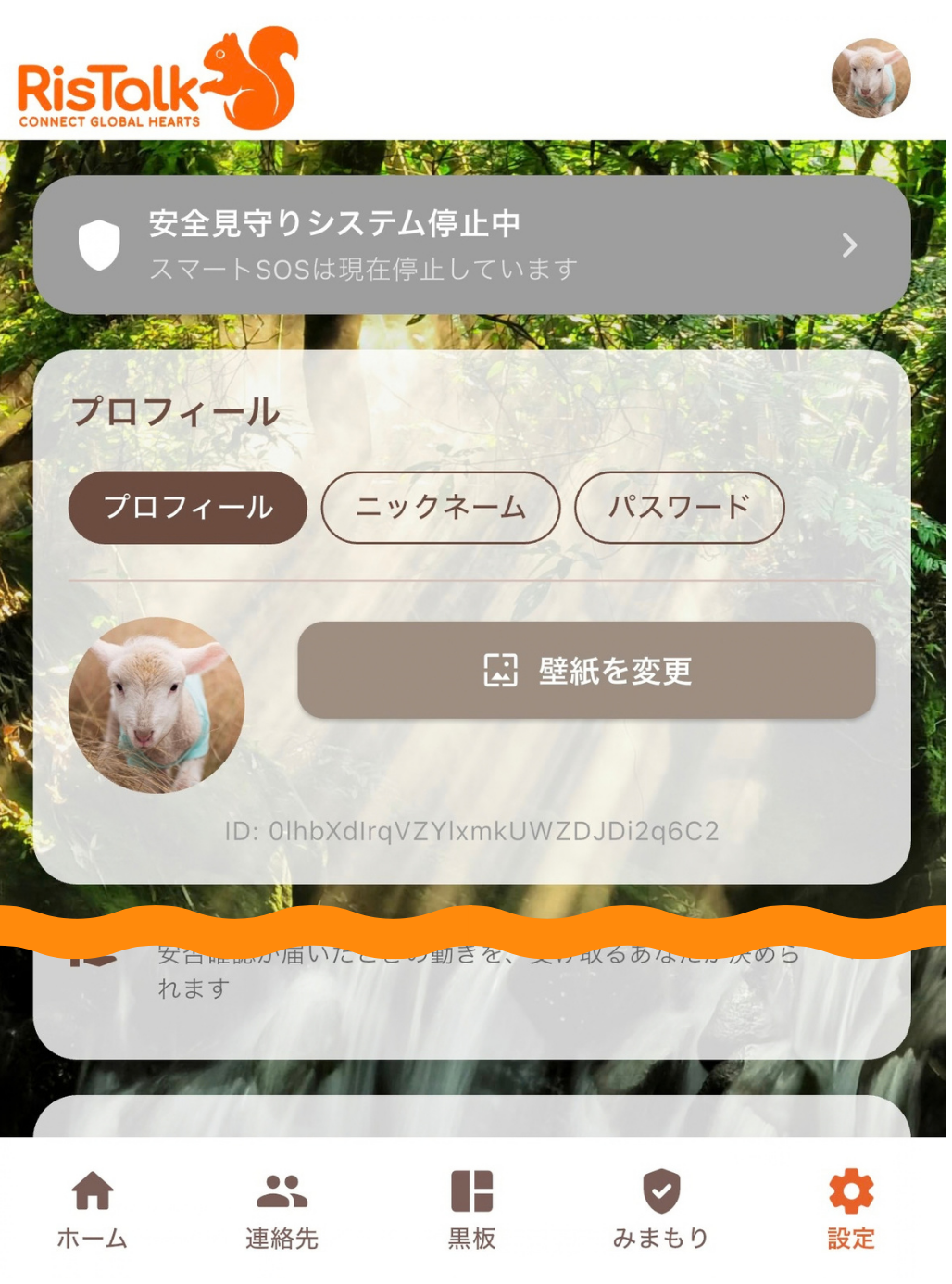
Initial Profile Setup
simpleto
Be yourself
- Enter your nickname
Go to Home Screen - Settings > Profile Picture
Tap the icon - Choose your favorite image
Setup complete!
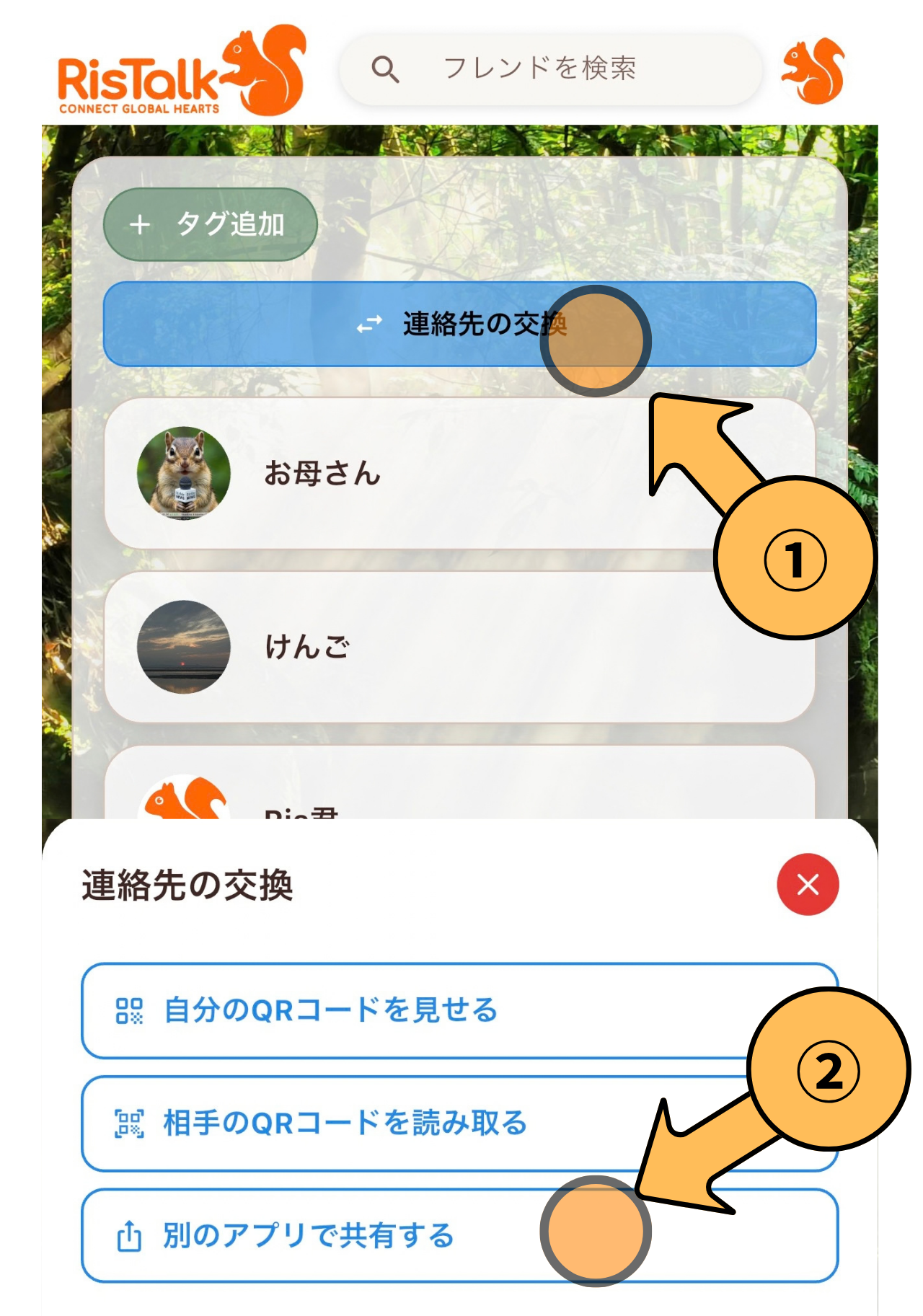
How to add friends

Even when we are apart,
LinkConnect.
- Tap the button in the upper right corner of the screen.
- Select the recipient from the sharing screen.
- An invitation has been sent,
When the other person opens it, you'll add them as a friend!

How to start the first conversation
Put your smartphone to your ear
yourvoiceSend!
Hold your smartphone to your ear.
"Pico"
Recording started from there.
If you take it away from your ear
"Swoosh"
Sending complete.

How to use the chat screen
Message input bar
 stamp
stamp
Creating feelings
Homemade stamps
One of a kind in the worldstamp
Along with your voiceLet's send it!
 Select File
Premium plan exclusive features
File transfer
Work efficiencyTo the next dimension
PDFs and various other files are also supported.
You can select and send directly.
From everyday notes to important documents,
Communication is possible in any format.
 Taken with a camera
 Select from photos
 location sharing
  Friend Introduction
Call initiation procedure and plan
You can start a free call anytime from within the app. The call duration for each plan is as follows:
per time3 minutesDay 110 timesAvailable until
Call durationCompletely unlimited
Turn off notifications from friends (silent mode)
Turn off notifications when you want to concentrate or when you're going to sleep. You can check messages at your own pace.
The other person will not be notified at all that you have turned off notifications.
The entire history remains, even though there are no sounds or banners.
Under preparation

contact address
How to use tags
By adding tags such as "best friend," "club," or "work," you can easily find the person you want to send a message to, even as your contact list grows.
How to create and delete tags
Creating a new tag
- Top of the screen
 Tap
Tap - [Enter the tag name.
- Select the friends you want to tag ⇒ Save
Remove unnecessary tags
- [View all tags] at the top of the screen
Tap - Select the tags you don't need ⇒ Edit the tags
- Remove this tagClick
How do I send a message?
You can send messages and surveys to tagged friends all at once.

procedure
-
1
Top of the home screen[View all tags]Tap
-
2
Tap the tag you created ➔ Top of the image[Green button 🟢]Tap
What does "editing friend information" mean?
You can enter the name, pronunciation, and notes of the person you've added as a friend.
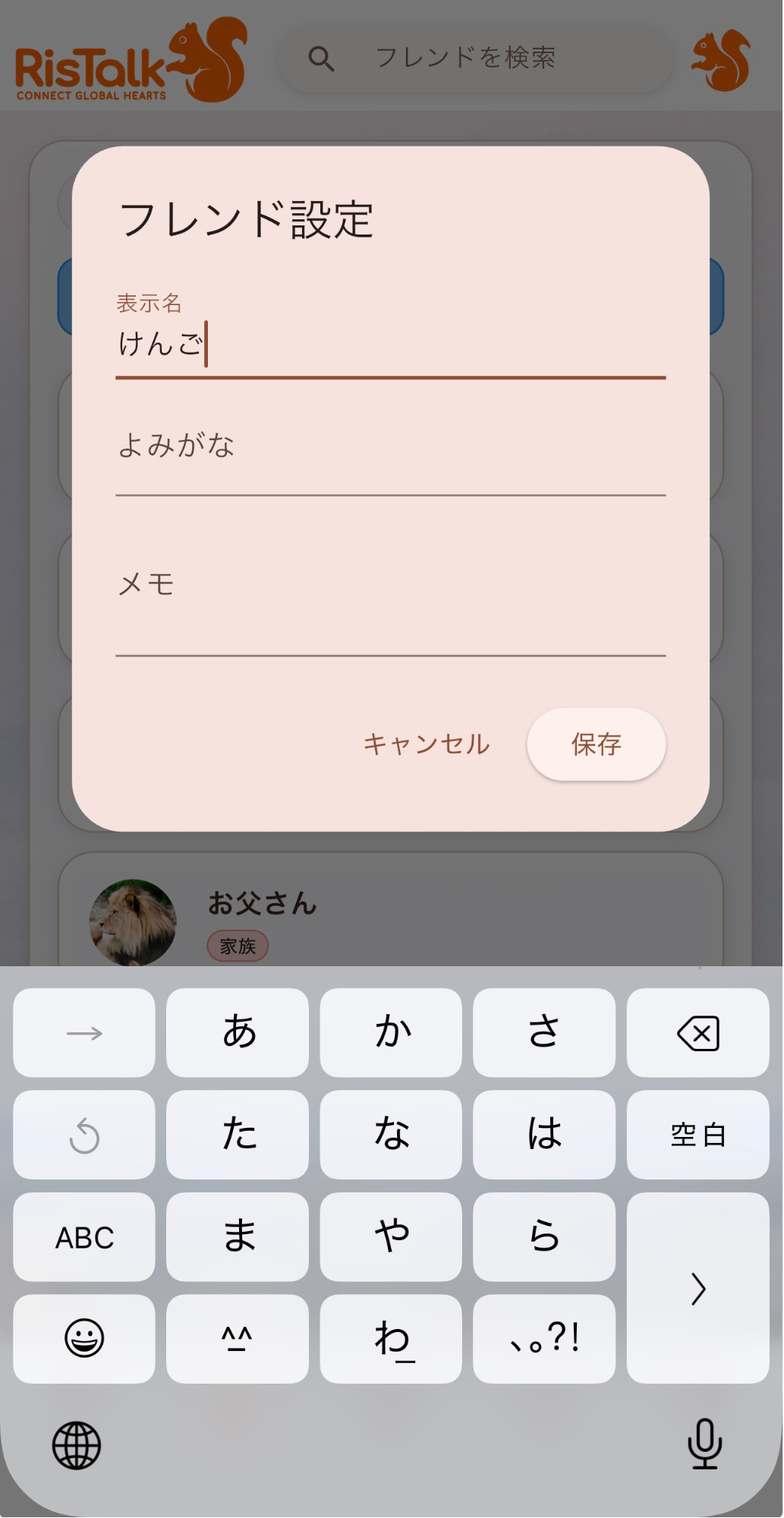
display name
These are the names of your friends that will be displayed on the home screen.
*The settings you have configured will not be displayed to the other party.
phonetic reading
This is used when reading out names hands-free.
Memo
Where did we meet?
• Shared hobbies
• What we talked about
This helps prevent you from forgetting who someone is after some time has passed.

blackboard
How to make a blackboard
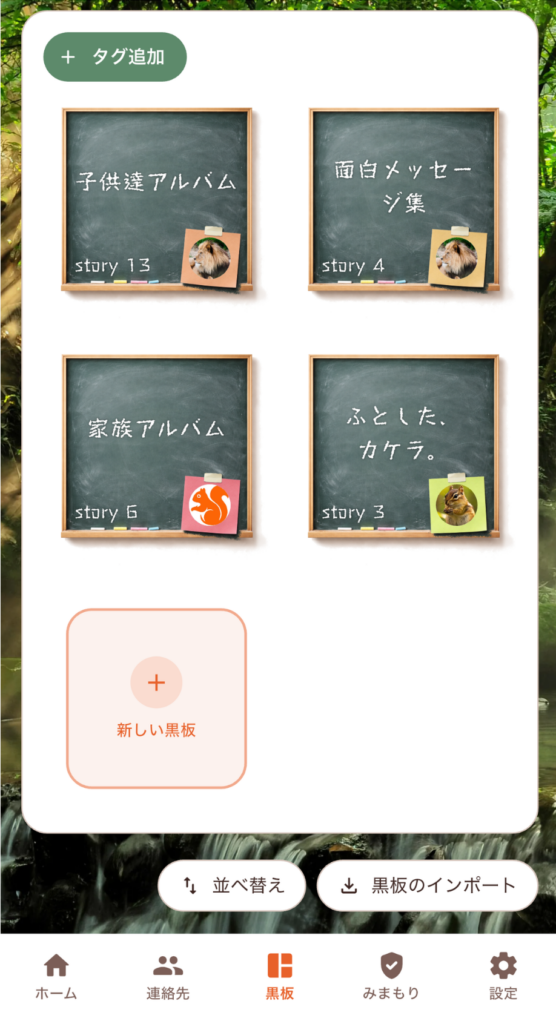
You can store voice messages and photos together on the blackboard.
-
1
Bottom of the app screen[Blackboard]Tap
-
2
[+ New blackboard]Tap
-
3
Enter your name[ keep ]
-
1
Messages you want to save in the chatPress and hold
-
2
From the menu[Send to the blackboard]Tap
-
3
[+ New blackboard]Select a name and save.
How to send a message to a friend on the blackboard
You can share the blackboard using custom files or links.
You can choose from two methods.
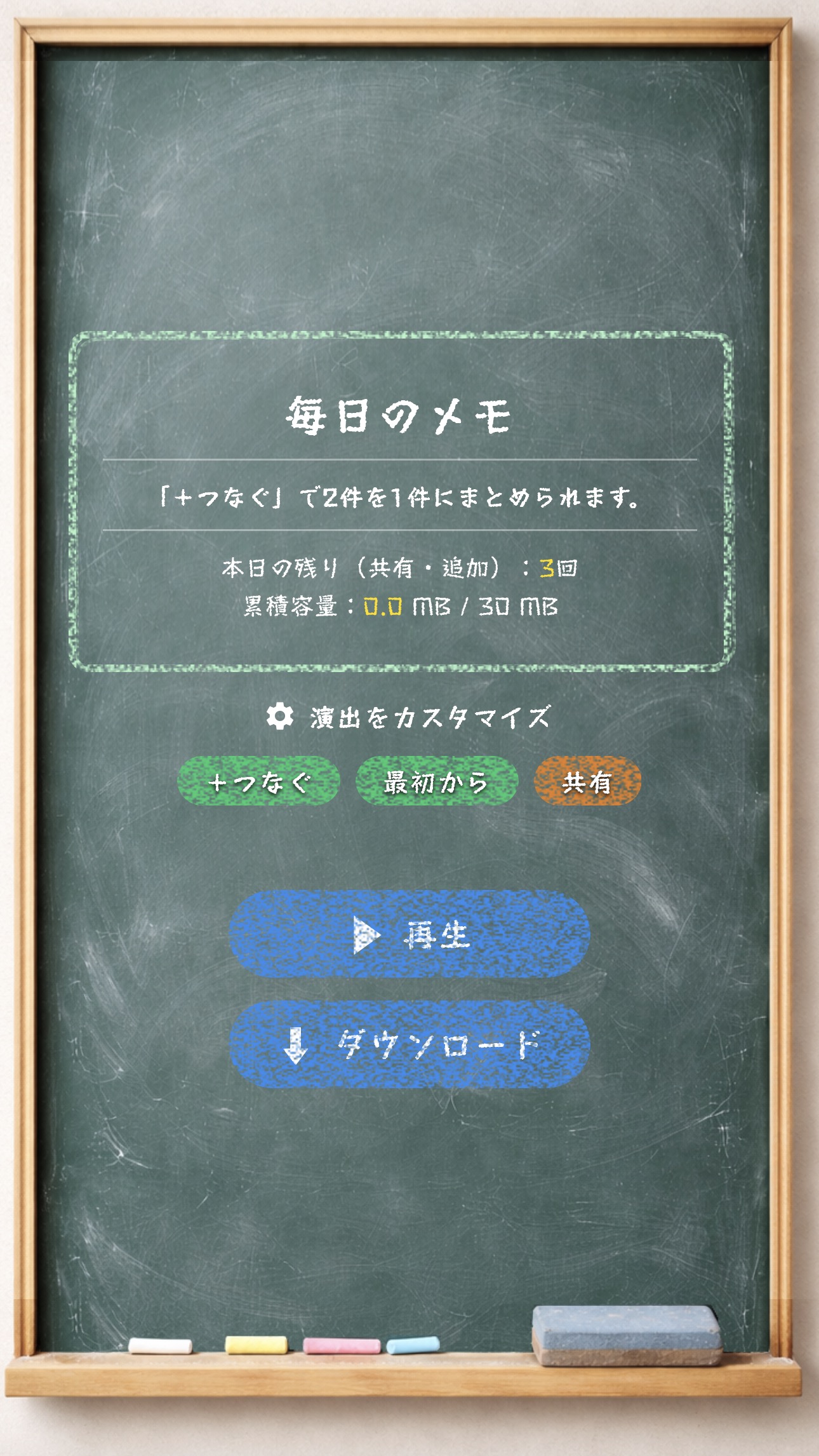
- 1Top right of the album editing screen[ ︙ ]Tap
- 2From the menu[Video playback and social media sharing]Select
- 3The page that opened[Share]Tap
⇒ The link is copied and can be shared on any social media platform.
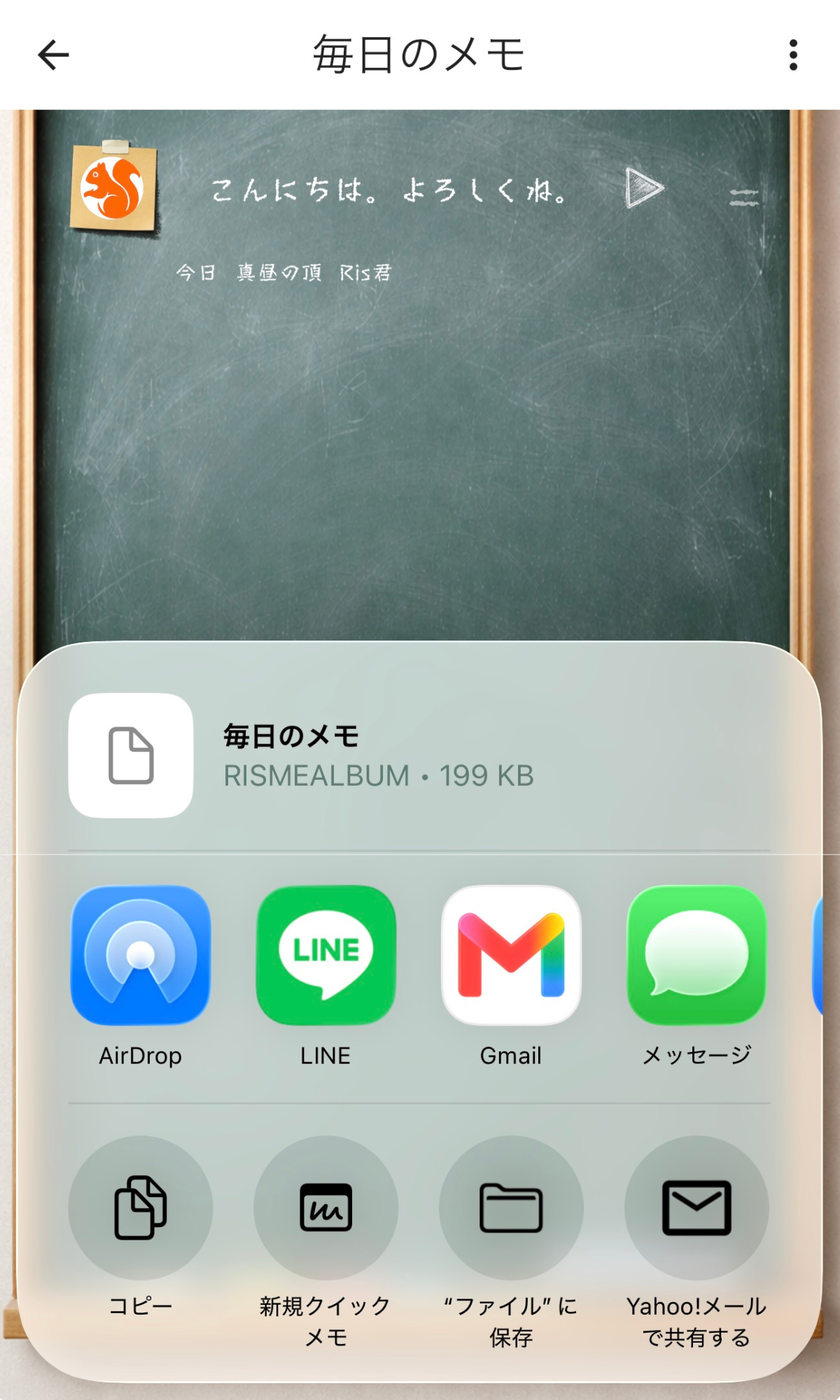
- 1Top right of the album[ ︙ ]Tap
- 2From the menu[📦 Export]Select
- 3Share the generated file in its proprietary format via AirDrop or file transfer.
How to edit the blackboard
① How to put messages and photos on the blackboard
procedure
-
1
I want to put it on the blackboard in the chat screen.
Long-press the message or photo. -
2
From the menu[Send to the blackboard]Tap
-
3
Select the blackboard ⇒ Save complete!
② Editing the blackboard・Export function
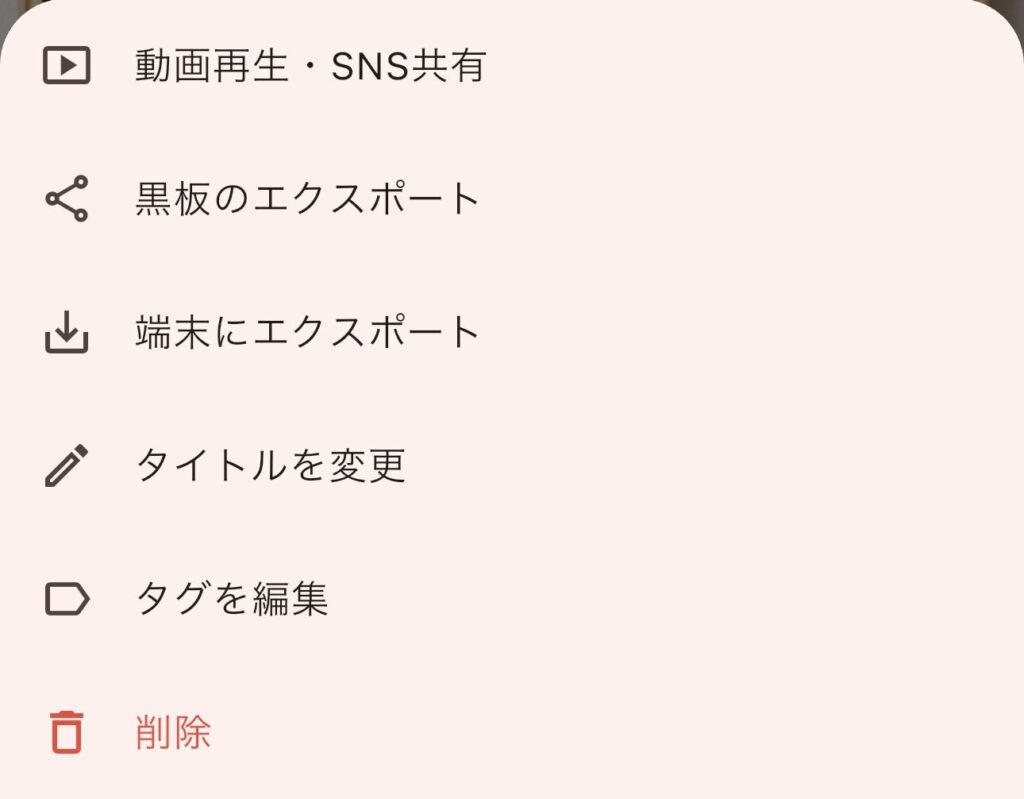
You can generate a URL and share it with friends and family.
High-quality files can be transferred using app-specific files.
Download and save album to your smartphone
You can edit the name of the blackboard.
You can edit the associated tags.
Delete unwanted albums.
Watching over
How to use the monitoring system
It can record location information and send SOS in emergencies.
Turn on the monitoring system.

-
1
You will be redirected to the monitoring page.
-
2
Tap the switch in the upper right corner of the screen.[ ON 🟢 ]Switching to this
When you turn the switch ON, a confirmation message regarding the use of location information will appear on your smartphone.
surely [Always allow] or [Allow while using the app]Please tap here.
*Always allowing access will allow you to view more accurate records.
🔧 If you previously set it to "Do not allow" and cannot turn it on (Device settings procedure)
You can restore location permissions at any time from your smartphone's settings app:
- smartphone"setting"Open the app
- Scroll the screen and select the name of this app.
- [Location information]Tap
- [Always allow]Check the box.
- smartphone"setting"➔"App"
- Select this app ➔[ authority ]
- [Location information]Tap
- [Always allow]Select
Select the recipients to share your location with, tag by tag.
If you want to share information with your family but keep it private from colleagues and acquaintances, you can safely switch each tag on or off.
-
1
[👥 Recipient of monitoring]Tap Change
-
2
Check the box next to the tags you want to use to share your current location.
-
3
Top right of the screen[Confirmed]Tap to complete the setup.
- 🏠 Family 🟢 Sharing It can be checked immediately in emergencies or when returning home.
- 💼 Company/Project ⚪ Not shared Your current location will not be transmitted at all.
- ⚽ Circles and acquaintances ⚪ Not shared Your current location will not be transmitted at all.
Location information
From automatically saving your usual travel history to detecting anomalies and conducting disaster preparedness drills, you can freely customize the safety features that protect you and your loved ones.
Periodic location recording (once every 5 minutes / retained for 24 hours)
Battery-saving and automatic eraseWhen turned ON, even when the app is not running...Automatically records current location once every hour.The system will only retain data from the most recent 24 hours, and older records will be automatically overwritten and deleted.
Automatic emergency SOS transmission & disaster preparedness training (test)
Equipped with anomaly detection and training modes.- SOS button When the SOS button located at the bottom of the monitoring screen is tapped
- Battery almost dead When the device's battery is running low and communication is likely to be interrupted
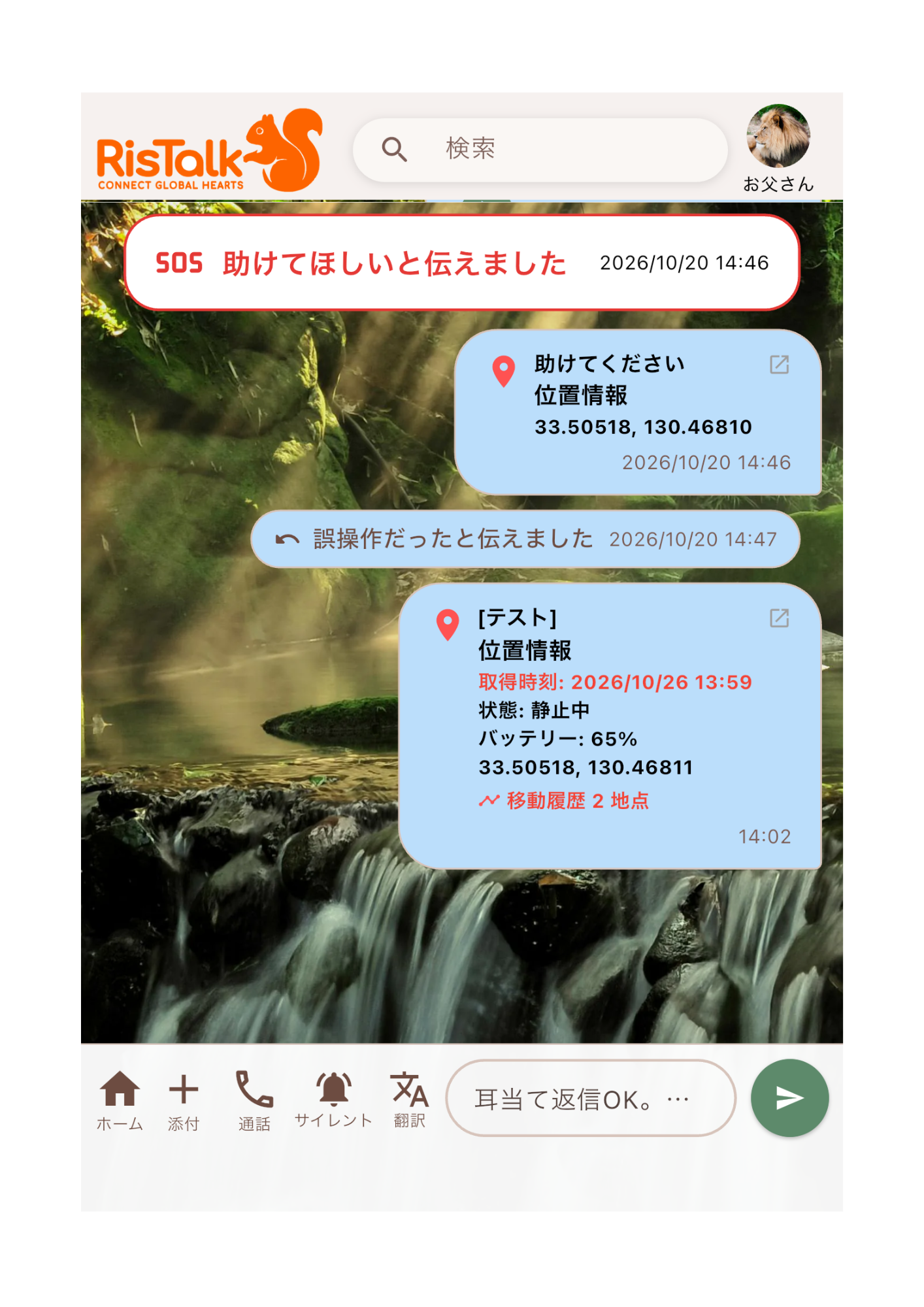
For those who are worried about whether their SOS notification will actually reach its destination in an emergency, we have included a disaster preparedness training function that allows you to check how SOS notifications are delivered.
-
1
Under the shared understanding of the person being monitored[Disaster Prevention Drill: Test Transmission]Tap
-
2
A message will be sent immediately to the specified tag after tapping.
-
3
"[Training] Safety Test"You will receive a message and a map of your current location.
Check your past location and status history.
Timeline displayWhen you open the recorded log, it displays not only the pins, but also detailed information in a timeline format that allows you to see the device's status and activity at a glance.
Ask about how things are today.
You can send notifications to members with specified tags, allowing them to respond with one of three options: "I'm safe," "I'm in trouble," or "Please help me."
Steps to send a message to check in
Sender's operation-
1
On the monitoring screen[The person you want to send it to]Tap
-
2
Select the recipient's tag and choose your preferred response time from the following two options:I need a reply now.
For emergencies or urgent checks
Anytime is fine.For everyday monitoring of well-being. Replies can be sent at the recipient's convenience without any hesitation.
-
3
Tap to send immediately.
The screen display on the recipient's end (the UI that reaches the sender)
How it appears to the recipientThe recipient's screen will display a special block that allows them to reply with their current status with a single tap, without having to type any text.
Ask about how things are today.
You can send a notification to all members of a specified tag, allowing them to respond with one of three options: "I'm safe," "I'm in trouble," or "Please help me."
- Reactions and replies(Quote replies to specific messages, stamps, emoji reactions)
- Edit, unsend, or delete messages
- Organizing the chat room(Pin, hide, archive, mute)